HTML to Markdown: When to Convert and What You'll Lose
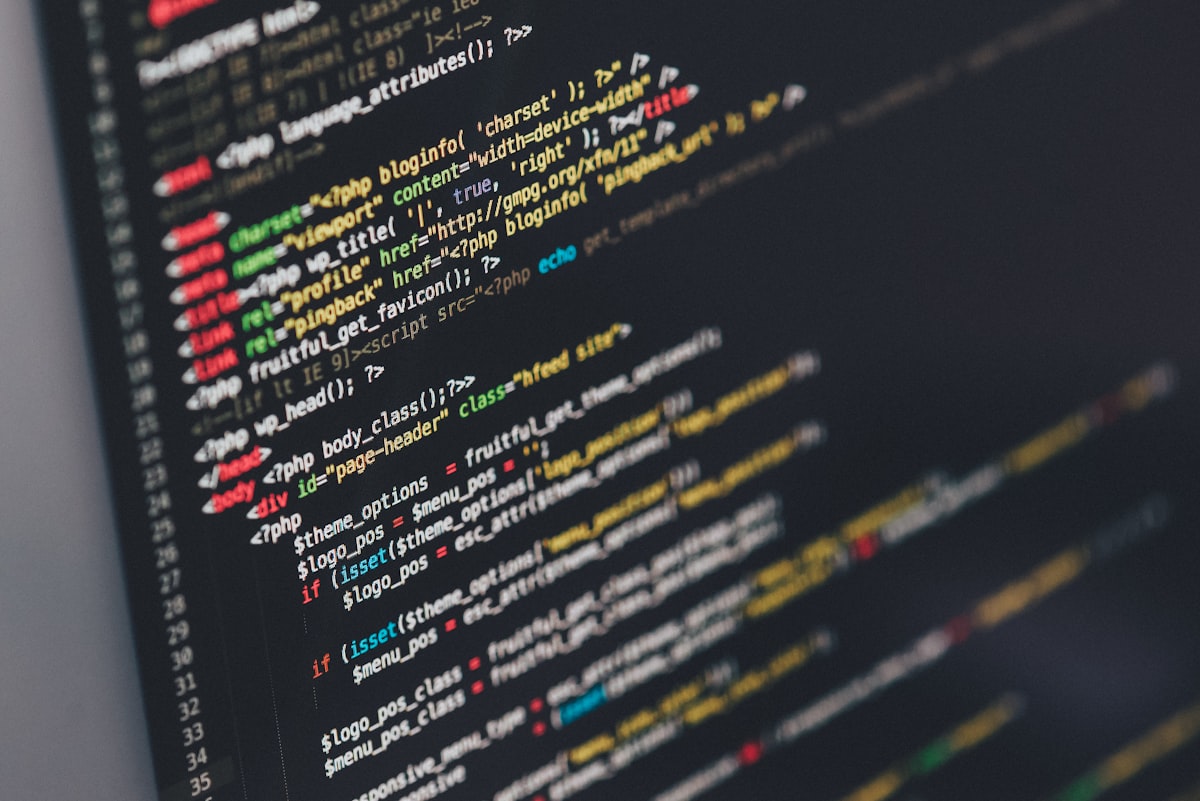
📷 Ilya Pavlov / PexelsHTML to Markdown: When to Convert and What You'll Lose
Converting HTML to Markdown isn't lossless. Learn what translates cleanly, what breaks, and how to do it right with free tools.
If you've spent any time working with content on the web, you've probably encountered the moment where you have a pile of HTML and wish it were Markdown. Or the reverse. The two formats coexist in the developer world in an uneasy relationship — HTML is the language of the web, Markdown is the language of people who write for the web.
This guide is about that conversion: when it makes sense, what you're trading away, and how to do it efficiently.
What Markdown Is and Why Developers Love It
Markdown was created by John Gruber and Aaron Swartz in 2004 with a simple goal: create a plain-text format that reads naturally as-is, but can also be converted to clean HTML.
It succeeded wildly. Today Markdown powers GitHub READMEs, GitLab wikis, Notion pages, Obsidian vaults, documentation sites, and countless blog platforms. If you've ever typed **bold** or # Heading in a text editor, you've written Markdown.
The appeal is real. Compare writing in raw HTML:
<h2>Getting Started</h2>
<p>Install the package with <code>npm install my-package</code> and then import it:</p>
<ul>
  <li>Import the default export</li>
  <li>Call the <code>init()</code> function</li>
</ul>
Versus Markdown:
## Getting Started

Install the package with `npm install my-package` and then import it:

- Import the default export
- Call the `init()` function
Same information. The Markdown version is faster to write, easier to read in raw form, and less error-prone (no forgotten closing tags). For documentation and prose, it's usually the better choice.
When You'd Actually Want to Convert HTML to Markdown
The conversion usually comes up in a handful of specific situations.
Migrating from a CMS to a Static Site Generator
This is the big one. You've got a WordPress site, or a Wix site, or a custom CMS that stores content as HTML in a database. You want to move to Gatsby, Hugo, Jekyll, or Astro — all of which work natively with Markdown files.
The content still exists; it's just in the wrong format. Rather than re-writing hundreds of posts by hand, you export the HTML and convert it to Markdown en masse.
This workflow is common enough that entire CLI tools exist for it. But for individual posts or smaller migrations, an online tool is often all you need.
Writing GitHub READMEs and Documentation
GitHub renders Markdown beautifully, but sometimes your source material exists as HTML — a webpage, a documentation site, a design brief in rich text format. Rather than copy-paste HTML mess into your README, you convert it to clean Markdown first.
Same applies to any documentation platform: GitBook, Read the Docs, Confluence (partially), Notion. Most of these prefer or require Markdown input.
Archiving or Repurposing Web Content
Say you've scraped or downloaded a webpage and want to archive its content in a readable, editable format. HTML with all its classes, IDs, scripts, and tracking pixels is a nightmare to read. Markdown stripped of that noise is clean and portable.
Or you're taking notes from an article and want to paste the content into Obsidian or Bear or any Markdown-based note-taking app. Converting first saves a lot of cleanup.
Cleaning Up Rich Text Pastes
This happens constantly: you copy text from a webpage or Google Doc and paste it into your editor. You end up with hidden HTML or rich text formatting that causes all sorts of problems. Converting that to Markdown gives you something clean and predictable.
What Gets Lost in Conversion
Here's where you need to be honest with yourself before committing to a conversion workflow: HTML can do things Markdown simply cannot.
CSS styling is gone. Font sizes, colors, custom spacing, borders, backgrounds — none of that survives. Markdown has no way to express "this text is red" or "this paragraph has 24px top margin." If your HTML relies heavily on inline styles, the converted Markdown will look structurally the same but visually different.
Complex table support is partial. Markdown does support basic tables (via the GitHub Flavored Markdown extension), but only simple ones. Multi-row headers, merged cells, colspan/rowspan — these don't exist in Markdown. Complex HTML tables get converted to simple versions or sometimes just stripped.
HTML attributes beyond href and src are dropped. data-* attributes, class, id, style, aria-* — the Markdown equivalents of links and images don't carry these. If your HTML relies on specific classes for JavaScript behavior or analytics tracking, those will be gone.
Custom components and embeds. Iframes, video embeds, custom HTML elements — Markdown has no equivalent. These typically get dropped or converted to a placeholder comment.
The reverse is lossless. Markdown to HTML is a complete conversion — every Markdown element maps cleanly to HTML. Going the other direction is lossy. Keep a backup if the original HTML might be needed.
This isn't a reason to avoid conversion — it's just context. For text-heavy content like articles, documentation, and blog posts, the lost information is usually irrelevant. For complex interactive pages, conversion will be incomplete.
How the Conversion Actually Works
Under the hood, HTML-to-Markdown converters work by parsing the HTML into a DOM tree and then traversing each element, translating it to its Markdown equivalent:
<h1>through<h6>become#through######<p>becomes a paragraph with blank lines around it<strong>and<b>become**bold**<em>and<i>become*italic*<a href="...">becomes[text](url)<img src="...">becomes<ul>and<ol>become Markdown lists<code>becomes backtick-wrapped code<pre><code>blocks become fenced code blocks
Elements without Markdown equivalents are either dropped or passed through as raw HTML (which Markdown technically allows, since Markdown is a superset of HTML).
The fidelity of conversion depends heavily on the tool used. Some are smarter about handling edge cases, stripping boilerplate (navigation menus, footers, sidebars), and preserving structure. Others are more literal.
Using Our Free HTML to Markdown Tool
Our HTML to Markdown converter handles the most common conversion scenarios without any installation or configuration.
How to use it:
- Paste your HTML into the input panel on the left
- The Markdown output appears instantly on the right
- Review the conversion for anything that looks off
- Copy the Markdown and use it wherever you need it
It's built on established conversion logic that handles headings, paragraphs, links, images, code blocks, lists, and basic tables. For most blog posts and documentation, it just works.
If you want to preview how your Markdown will render before using it, the Markdown Preview tool lets you paste Markdown and see the rendered HTML output side by side.
For encoding special characters in HTML, the HTML Encoder tool is useful when working with the reverse direction.
Manual Conversion vs. Automated Tools
For a single page, manual conversion is fine — you can do it in a text editor in a few minutes. For anything over 10–20 pages, automation is the only sensible path.
Here's the tradeoff:
Manual conversion gives you full control. You can make judgment calls — keep this table as HTML, simplify this section, rewrite this anchor text. The result is exactly what you want. But it doesn't scale.
Automated tools (online converters, CLI tools, libraries) handle bulk conversions and are fast. The output is consistent. But you'll almost always need a cleanup pass, especially for:
- Navigation elements that got included in the conversion
- Boilerplate text (cookie notices, newsletter CTAs)
- Weird formatting artifacts from complex CSS layouts
- Tables that converted but need simplification
For most real-world migrations, the workflow looks like: automated conversion first, then manual cleanup for anything that looks wrong.
Dedicated Tools and Libraries Worth Knowing
If you're doing programmatic conversions — in a build script, a Node.js app, a Python script — these are the tools most developers reach for:
Turndown.js (JavaScript) is probably the most widely used HTML-to-Markdown library in the Node.js ecosystem. It's actively maintained, configurable, and handles the common elements well. You can add custom rules for elements it doesn't handle by default.
const TurndownService = require('turndown');
const turndownService = new TurndownService();
const markdown = turndownService.turndown('<h1>Hello World</h1>');
Pandoc is the Swiss Army knife of document conversion. It converts between dozens of formats: HTML, Markdown, Word, PDF, LaTeX, and more. If you need a CLI tool that handles complex documents, pandoc is the answer. It has more configuration options than most people will ever use.
html2text (Python) is a lightweight Python library for converting HTML to plain text in Markdown style. Great for scraping and content extraction pipelines.
Markdownify is another Python option, specifically focused on HTML-to-Markdown with clean output.
For one-off conversions, online tools like our HTML to Markdown converter are faster than installing anything. For repeated or automated conversions, a CLI tool or library integrated into your workflow makes more sense.
Best Practices for Clean Conversions
A few things that consistently improve conversion quality:
Clean your HTML before converting. If possible, strip out navigation, footers, sidebars, and other boilerplate before feeding the HTML to the converter. Most converters will try to convert everything they're given. The cleaner the input, the cleaner the output.
Review heading structure. If the source HTML had inconsistent heading levels (jumping from <h1> to <h4> with nothing in between), the converted Markdown will have the same issue. Now's a good time to fix the document hierarchy.
Handle links carefully. Relative links (/about) that made sense on the original site won't make sense in your new Markdown files unless the URL structure is preserved. Absolute links (https://example.com/about) are safer for migrated content.
Check image paths. Image references in Markdown need to point to accessible URLs or local file paths. If your source HTML referenced /wp-content/uploads/image.jpg, that path probably won't work after migration. Update image paths as part of the cleanup process.
Test rendering after conversion. Paste your converted Markdown into a preview tool (Markdown Preview works well) and compare it to the original. Spot-check for any elements that didn't survive the conversion.
A Practical Migration Workflow
Here's a workflow that works well for migrating a small-to-medium blog from an HTML CMS to a Markdown-based static site:
- Export your content from the source CMS (most have an export feature)
- If you get HTML files, run them through a bulk converter or script using Turndown.js or pandoc
- Do a first-pass review — look for obvious conversion artifacts
- Update any broken image paths and links
- Check heading structure and fix any hierarchy issues
- Run the final Markdown files through a preview tool to sanity-check rendering
- Import into your new site and verify live output
For a 50-post blog, this process typically takes a few hours, not days. The automated conversion does the heavy lifting; you're mostly doing quality control.
When Not to Convert
Not everything should be converted to Markdown.
If your page has complex interactive components — JavaScript-driven tabs, accordions, dynamic content — converting the HTML shell to Markdown will strip out the very things that make the page work.
If precise visual formatting is critical (landing pages, marketing materials, designed article layouts), Markdown's lack of styling control makes it a poor fit.
If you're working with a platform that actually runs on HTML templates and your team is comfortable with HTML, switching to Markdown might introduce unnecessary friction without meaningful benefit.
Markdown is a great tool for text-heavy, relatively simple-structured content. For anything more complex, HTML (or a proper page builder) is often the right choice.
Final Thoughts
HTML and Markdown serve different purposes and different audiences. HTML is for browsers. Markdown is for humans who write things that end up in browsers.
Converting between them is a solved problem — the tools exist, they're good, and they're free. The real skill is knowing when conversion adds value and when it doesn't, and knowing how to clean up the output so it's actually usable.
For quick, one-off conversions, our HTML to Markdown tool is the fastest path. For larger migrations, pair it with a programmatic approach and a solid review process.
Either way, once your content is in Markdown, you'll probably wonder why you ever kept it in HTML.